
Unsolicited and unwanted emails are becoming a larger problem since they’ve been flocking inboxes with undesired messages. Email services have therefore made their spam filters more stringent.
We, at MD Analytics, applaud these methods to prevent SPAM and help users have a clean and focused inbox. But, nothing is really perfect. Many times, some important and informative emails are sent into the spam folder without our knowledge. This happens when the service provider can’t find an email in its valid ID database or when you haven’t added it to your contact list.
Whitelisting emails ensures that you only receive emails from specified email addresses and blocks SPAM from others.
Below, we have listed a few email applications and how you can whitelist an email address in them.
Gmail #
Add us to your Gmail Contact List:
- On your computer, go to contacts.google.com
- In the top left corner, select Create contact
- Enter our contact information and paste info@mdanalytics.me into the email address field
- Select Save in the bottom right corner
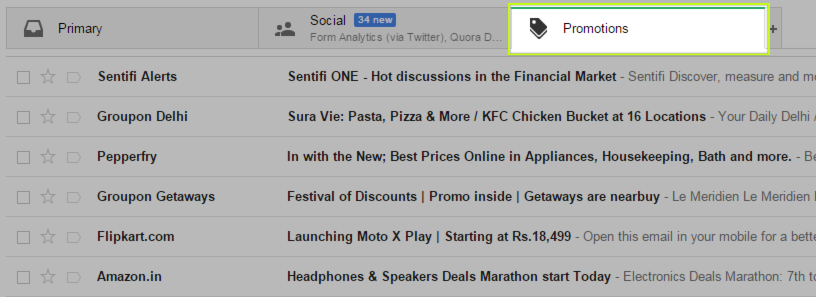
- Open the “Promotions” tab in Gmail
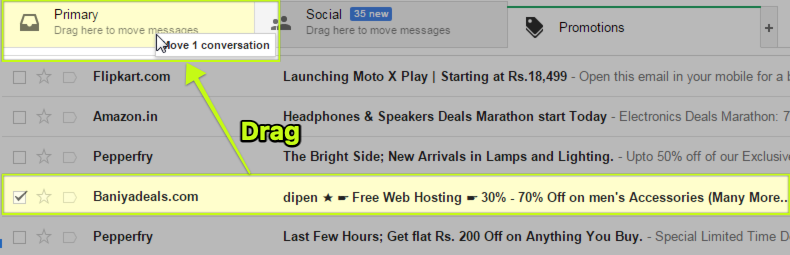
- Left-click and hold on the rvresortScout email you want to receive regularly in your Inbox
- Drag and drop the email on to the primary tab of your Gmail
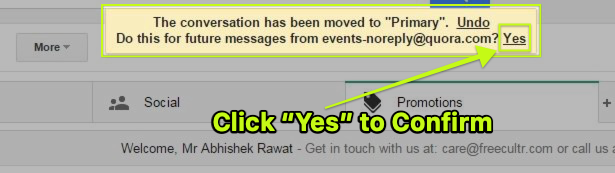
- After you drop the email you will see the following popup: Click “Yes” to confirm
- By clicking “Yes” on the above popup you assure that all your future emails from us go directly on your inbox so you don’t miss out
Yahoo #
Set up a filter to our email address in your inbox:
- Log into Yahoo Mail, select the Contacts icon.
- Select Add a new contact.
- Enter the email address info@mdanalytics.me in the appropriate field.
- Select Save.
Unmarking Email as SPAM #
By moving an email from the spam folder to your inbox, you can signal to Yahoo that you want to receive similar messages in the future, although it doesn’t guarantee that all emails from that sender will bypass the spam filter. Nevertheless, it’s a simple way to train Yahoo and ensure important emails don’t get lost in the spam folder.
From a Mobile Browser #
- Go to Yahoo Mail in your mobile device’s web browser
- Tap the Sidebar menu icon
- Tap the Spam folder
- Select the desired MD Analytics email
- Tap the Move icon
- Tap Inbox
From a Computer #
- Go to Yahoo Mail in your computer’s web browser
- Select the Spam folder
- If you don’t see the “Spam” folder, select More below the “Sent” folder
- Select the desired MD Analytics email
- Select Not Spam at the top of the page
- The email will return to your Inbox
Unblock an email address #
- Select the Settings icon
- Select More Settings
- Select Security and Privacy
- Hover over the desired email address, then select the Delete icon
Outlook #
Add our email address to your Safe Senders list:
- Find and click on the Settings Icon (gear icon).
- Select View all Outlook settings.
- Select Mail.
- Select Junk email.
- Enter the email address info@mdanalytics.me in the appropriate field.
- Select Add > Save.
Outlook also considers email IDs added to contacts to be safe. You can add info@mdanalytics.me to your contact list in Outlook. This can be done by opening the email you received from us, right-clicking the From address, and selecting “Add To Contacts”. You can also access your Address Book via the Tools drop-down menu.


