
Step 1: Go to the BACB® Website #
Open your browser and navigate to the official BACB website.
Visit: https://www.bacb.com
Step 2: Create a BACB Account #
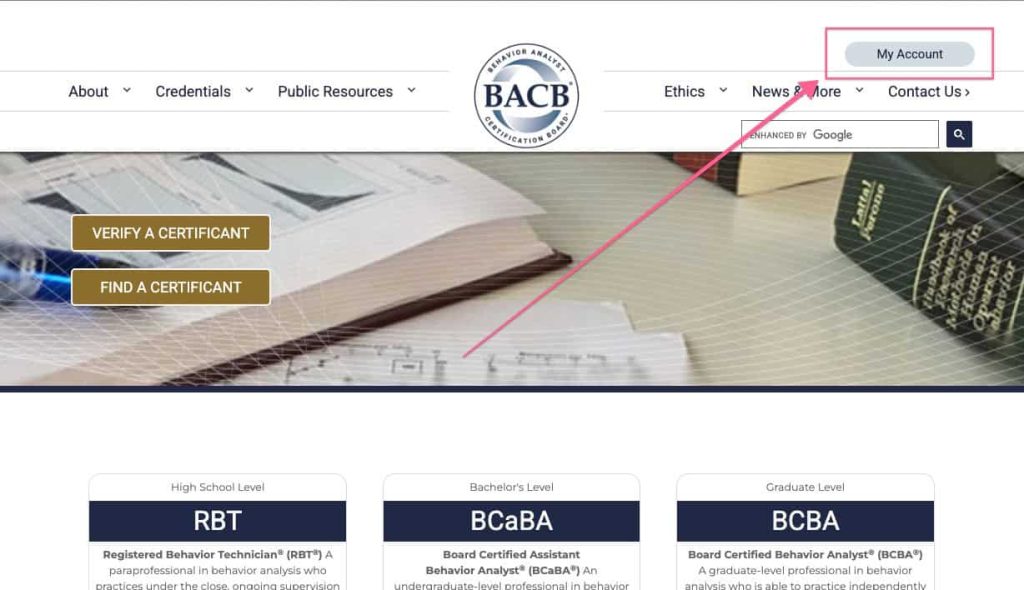
- On the homepage, click “My Account”.
- The look for the option to “Create an Account” and click it.
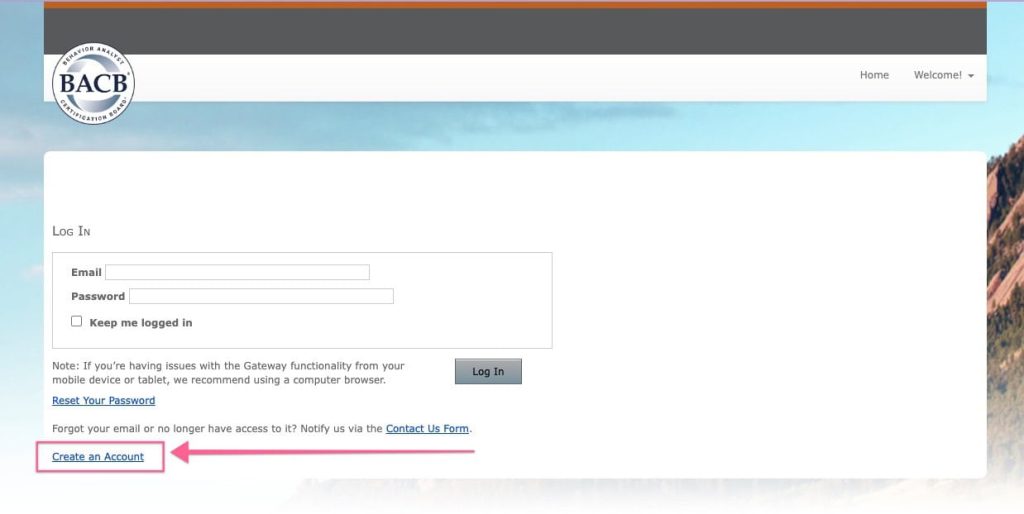
- The look for the option to “Create an Account” and click it.
Step 3: Create an Account #
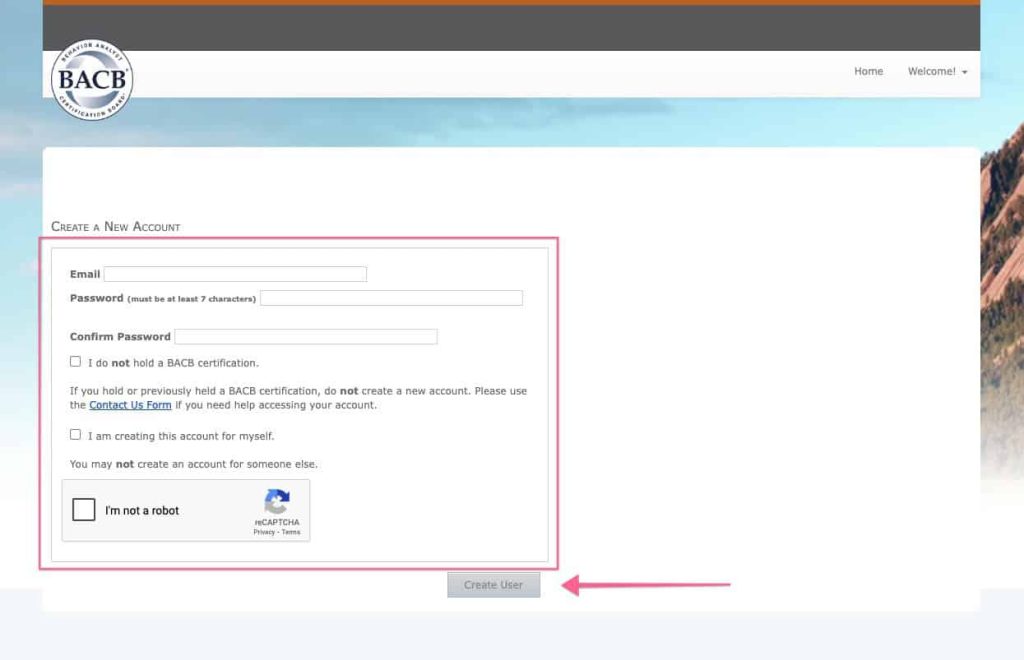
- Enter a valid email address and create a secure password.
- Be sure to select that you are creating the account for yourself and that you currently do not hold a BACB certification.
Step 4: Enter Your Personal Information #
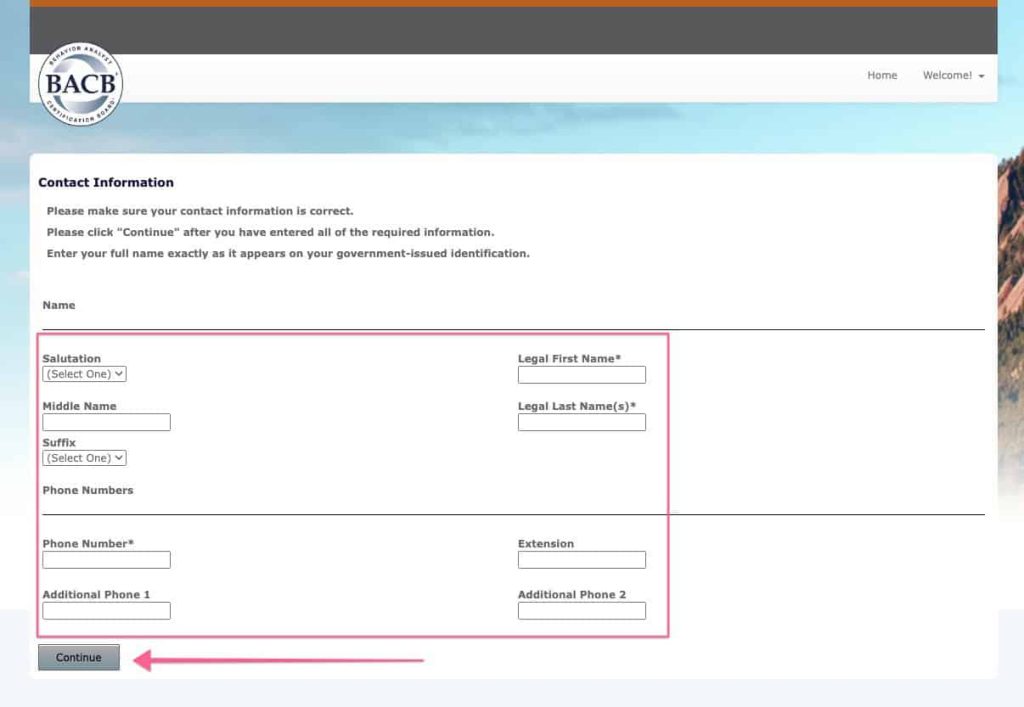
- Fill in all required fields with accurate personal details such as your name, and contact phone number.
Step 5: Verify Your Email & Account #

- Simply click the “Send Activation Link” button, then check your email inbox and click on the link to verify your email.
- Once your email is verified, your account will be active.

- After verifying and activating your account, you may be asked to provide your background information.
- Please enter your details and click the save button to proceed.
Step 6: Find Your BACB ID #
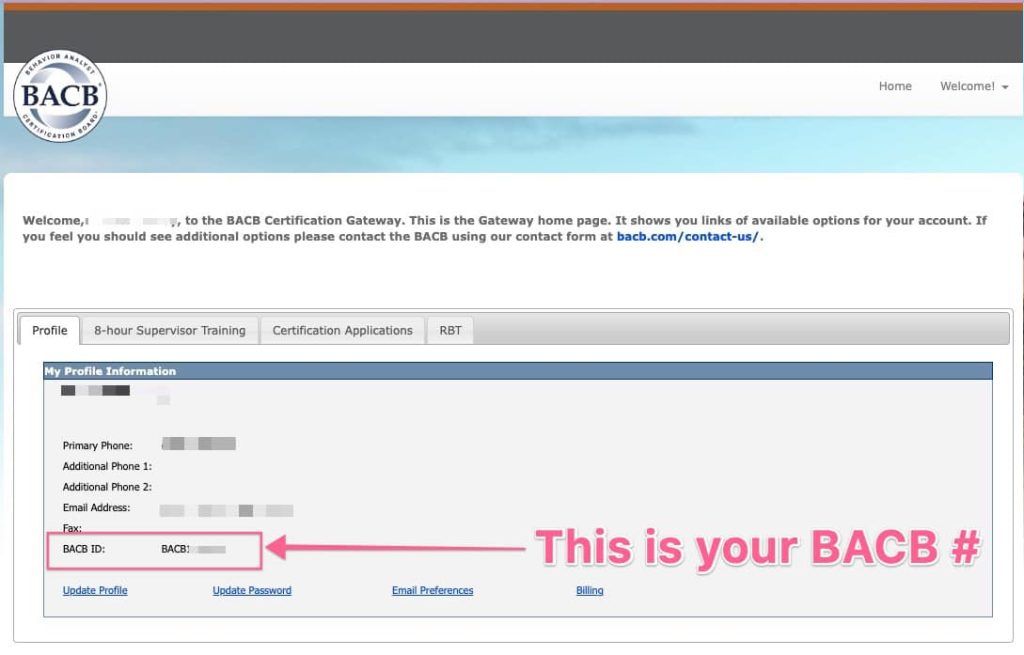
- Once your account is created and you log in, your BACB ID will be visible on your account profile page.
- It’s usually listed under your name and contact information.
- Write this number down or save it, as you will need it when submitting your certification application and related documents.
What’s Next? #
Once you have your BACB ID, you can:
- Submit your RBT certification application through your BACB account after completing all requirements (40-hour training, competency assessment, and background check).
- If approved, you’ll receive an exam authorization and be able to schedule your RBT exam through Pearson VUE.


